Intake: Assets, Assessment & Gaps
The Intake tab is where you build the foundation of your compliance picture — register your assets, answer scoped questions, and surface gaps.
Two sub-tabs
- Assets — Connect data sources, declare your estate, and register entities
- Assessment — Answer Yes/Partially/No for each control; findings link straight to the audit punch list
Assets tab
The Assets tab is organised top-to-bottom as a connect-first funnel: Microsoft 365, EDR & endpoint protection, and Declared estate sit at the top, followed by the entity counts and entity groups, with Import entities (CSV) at the bottom as a fallback.
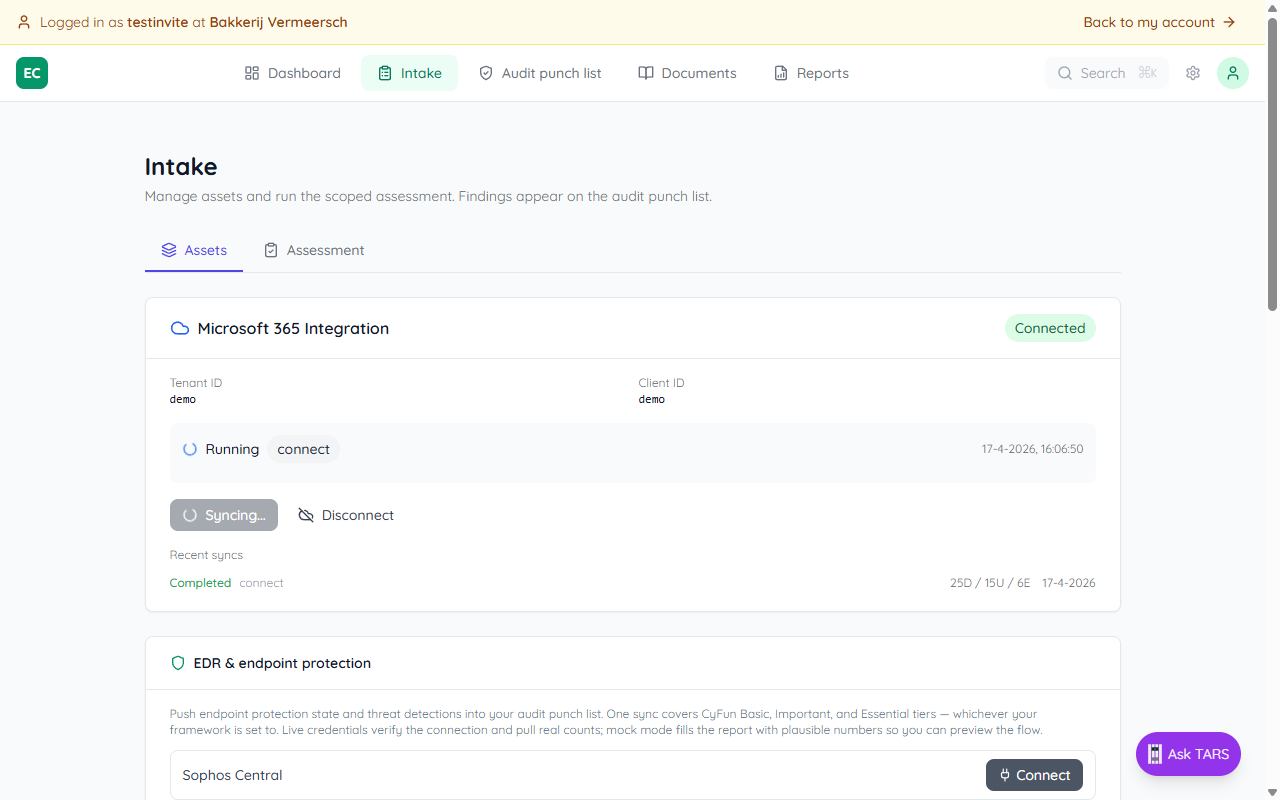
Microsoft 365 Integration
Connect Intune and Entra ID to stream devices, users, and applications into the asset register. Each sync also pre-answers a chunk of the Assessment with blue auto-detection banners you can Apply with one click.
- ● Devices from Intune (laptops, phones, servers with OS, encryption, compliance status)
- ● Employees from Entra ID (users with MFA status, roles, department)
- ● Applications detected on managed devices
Enter the Azure AD tenant and app-registration credentials once, then use Sync now whenever you want fresh data. Disconnect to wipe the credentials.
EDR & endpoint protection
Connect Sophos Central or Bitdefender GravityZone to push endpoint-protection state and threat detections into the punch list. One sync covers CyFun Basic, Important, and Essential tiers — whichever your framework is set to. Mock mode lets you preview the flow without real credentials.
Declared estate
Enter the real counts for devices, employees, applications, suppliers, workplaces, and networks — the App sees labels show what the integrations currently find. An auditor will compare your declared numbers against observed coverage: if Microsoft 365 only sees 12 devices and you declared 83, that's a population gap the punch list will flag. Click Confirm to lock your estate baseline.
CSV import (fallback)
If you don't have M365 or an EDR to connect, scroll to the bottom of the Assets tab and click Import entities. Drop a spreadsheet and the importer auto-detects column types and entity kind before upload.
Full CSV guide: Importing devices and employees
Assessment tab
The Assessment tab presents all control questions grouped by area (Access & Identity, Security Monitoring, Risk Assessment, etc.). For each question, select Yes, Partially, No, or N/A. The total answered out of 34 is shown at the top.
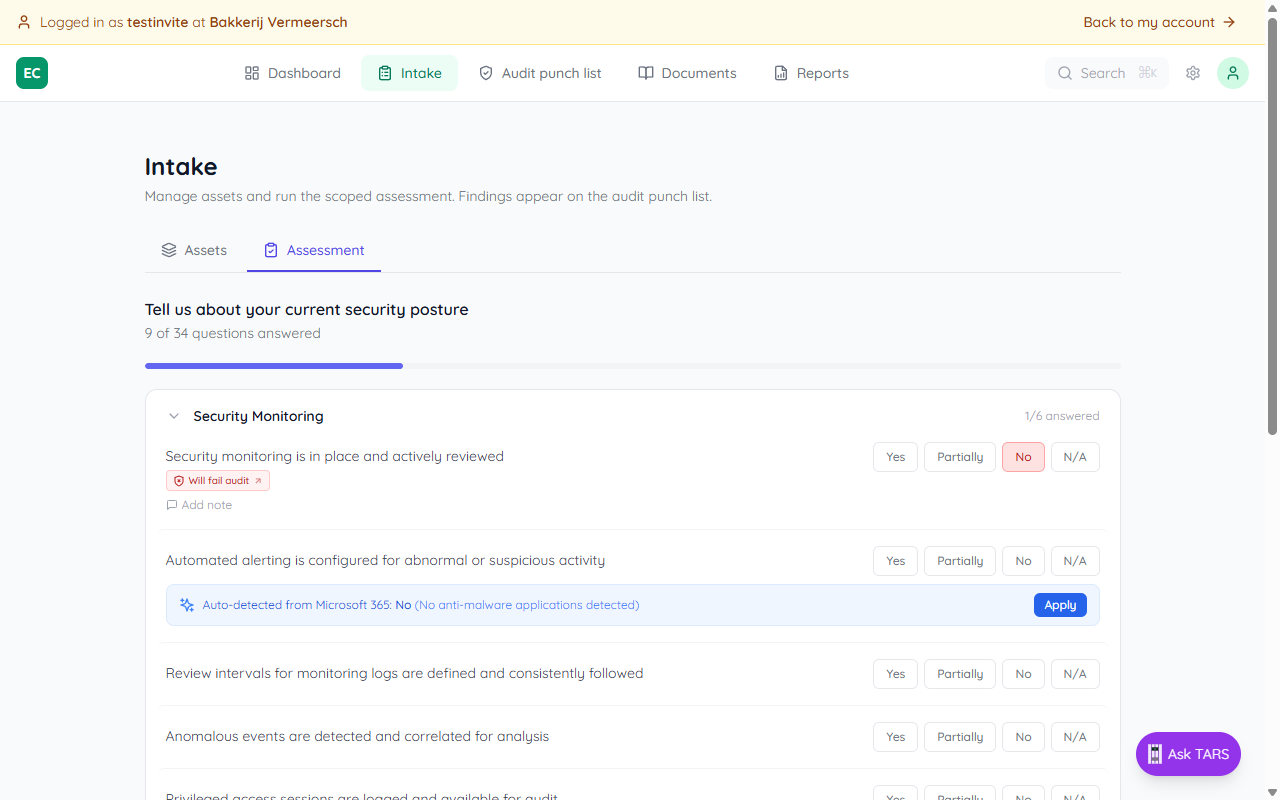
Answers are saved instantly. You can return and update them at any time as the organisation's posture improves.
Auto-detected answers from Microsoft 365
When Microsoft 365 is connected, the system analyses your Intune and Entra ID data to suggest answers for relevant questions. A blue banner appears below unanswered questions with a suggested answer and supporting detail — for example, "80% of users have MFA enabled (12/15)".
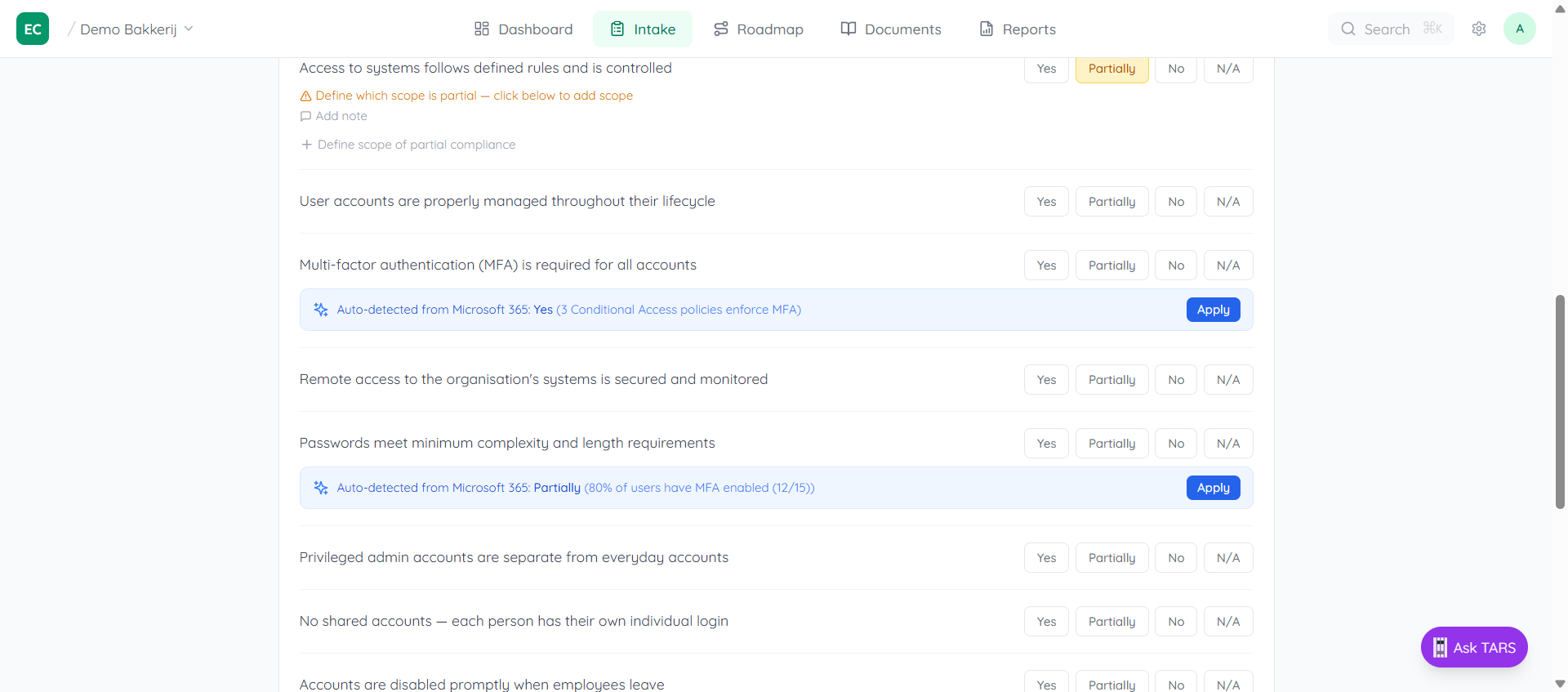
Click Apply to accept the suggestion. The banner disappears once an answer is set. You can always change the answer manually afterward.
Partially requires a scope
Choosing Partially means part of the organisation complies and part doesn't. The system will show an amber warning if no scope overrides are defined — you need to specify at least one group that is different to make the partial answer meaningful.
Scoped overrides
Use Add exception for specific scope to specify a different answer for a specific group or entity type. For example, if "Yes" applies org-wide but a specific warehouse group is still "Partially", add an override for that group. Use the All/Devices/Employees/Apps chips to restrict which entity types the override applies to.
The entity count next to each scope (e.g. 1 employee) shows how many registered entities match that group. If some entities aren't covered, a warning appears at the bottom — add more scope rows until all entities are accounted for.
Adding a note
Any answer can have a free-text note attached. Click Add note (the chat icon) to document why you answered a certain way. Notes are saved alongside the answer and visible to anyone reviewing the assessment.
Finding badges link to the punch list
Every answered question shows a colored badge — Will fail audit, At risk, or Ready — showing how the corresponding finding looks on the punch list. Click a badge to jump straight to the expanded finding with its prescriptive action. From there a View assessment answer link comes back.
From assessment to audit punch list
Any answer that isn't a clean "Yes" (unanswered, Partially, No, or Yes with scope exceptions) surfaces as a finding on the Audit punch list. That's the single place to see what's broken, why it would fail an audit, and the one prescriptive next action — Upload evidence, Fix artifact type, Confirm scope, Refresh evidence, or Reconcile integration.
Intake tells you what's declared. The punch list tells you what's proven. Both views are live — change an answer here and the punch list updates immediately.